















Lineage 2 on your phone
The L2Meta mobile client is available for Android and iPhone. The same Interlude world: farm from your phone on the go and join sieges and mass PvP from your PC.
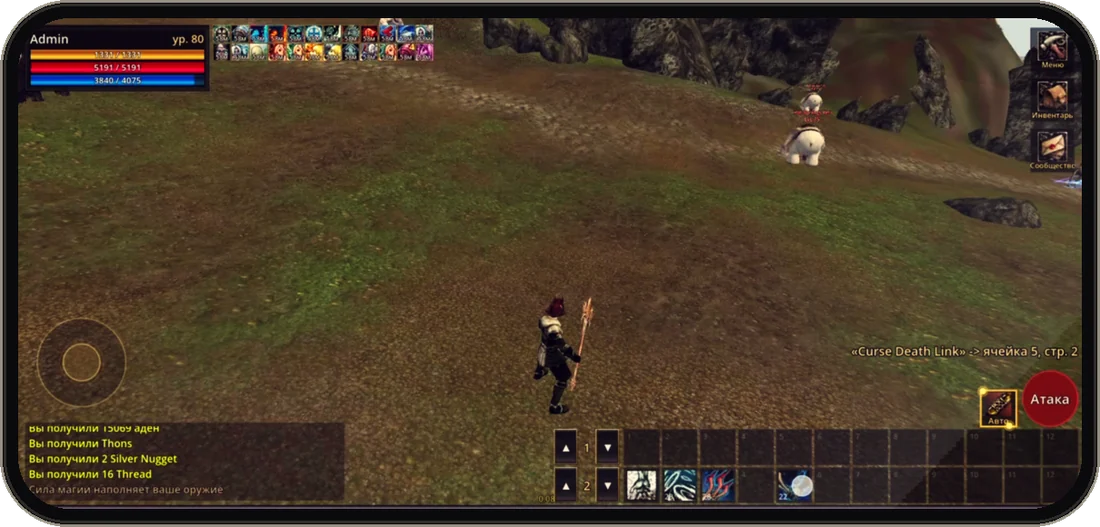
Android
APK installer. Game data is downloaded automatically on the first launch.
- Android 7.0 or later
- ARM processor (64-bit or 32-bit)
- RAM: 2 GB minimum, 4 GB or more for comfortable play
- Free storage: 4 GB
- Internet: Wi-Fi or mobile data
iOS
A personal developer certificate for your iPhone or iPad. It lets you install the game and any other apps without the App Store.
- iOS 15 or later
- iPhone XS, XR or newer (A12 chip or newer)
- iPad with an A12 chip or newer
- Free storage: 4 GB
- Internet: Wi-Fi or mobile data
The mobile client is currently in open beta and connects to the test server. Bugs and maintenance are possible — please report issues on the forum or in Discord.
How to install on Android
Menu names may differ slightly depending on your phone model and Android version.
-
1
Download the APK
Tap “Download APK” on this page. L2Meta.apk (≈ 63 MB) will be saved to Downloads. If Android asks for permission to install unknown apps, allow it for your browser or file manager.

Illustration — screens vary by device -
2
Enable developer mode
Open Settings, search for “Developer options” and turn them on. If there is no such item: Settings → About phone → Software information and tap “Build number” 7 times.
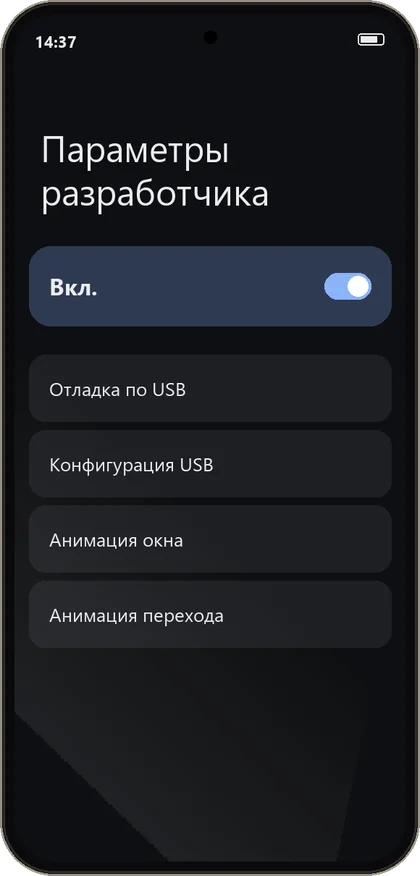
Illustration — screens vary by device -
3
Turn off Auto Blocker if needed
On some phones (e.g. Samsung with One UI 6 or newer) APK installation is blocked by Auto Blocker: Settings → Security and privacy → Auto Blocker → off. You can turn it back on after installation.
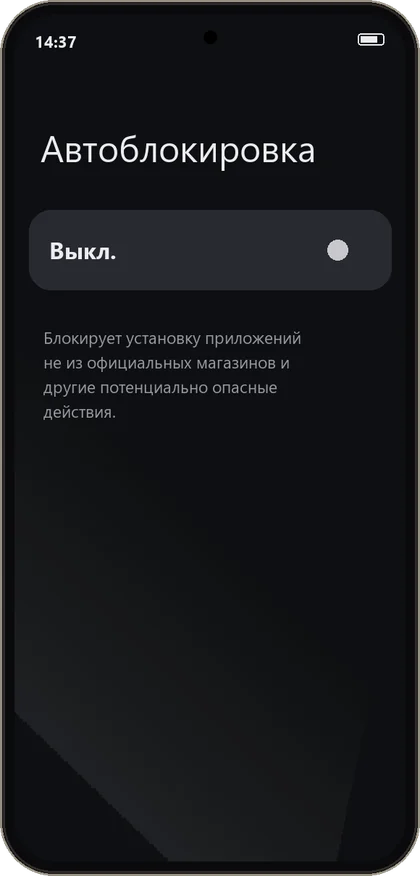
Illustration — screens vary by device -
4
Install the app
Open the downloaded file, tap Install and then Open.

Illustration — screens vary by device -
5
Wait for the game files
On the first launch the client downloads the game data (≈ 2.8 GB) by itself. Wi-Fi and at least 4 GB of free space are recommended. Future updates are downloaded automatically too.

L2Meta mobile client screenshot -
6
Log in
Enter your L2Meta account login and password. During the open beta you connect to the test server.

L2Meta mobile client screenshot -
7
Play!
Farm, level up and chat with your clan right from your phone — and continue on your PC in the evening.

L2Meta mobile client screenshot
Installing on iPhone and iPad with a certificate
A personal developer certificate for your iPhone or iPad. It lets you install the game and any other apps without the App Store.
An Apple developer certificate is an official signature that allows your iPhone or iPad to run apps installed from outside the App Store.
It is issued personally for your device by its number (UDID) and works only on that device.
With the certificate you can install not only our game but any app in IPA format: other games, emulators and apps that are not in the App Store.
You get two files — .p12 and .mobileprovision — and a password for them. They are used to sign apps in the GBox app right on your phone.
Do every step on the iPhone or iPad itself, in the Safari browser. No computer is needed. The whole thing takes 10–15 minutes.
-

Screenshot -
Step 2
Allow the profile download
Safari will ask whether it may download a configuration profile. Tap “Allow”. The profile is only needed to show the device number.

Illustration -
Step 3
Install the profile
Open Settings → General → VPN & Device Management, select the downloaded profile and tap “Install”. The profile is removed automatically.

Illustration -
Step 4
Copy the UDID
You will be taken back to the Device info page. Tap the UDID field — the number is copied. It looks like this: 00008030-XXXXXXXXXXXXXXXX. This is only an example — your number will be different.

Illustration
-
Step 5
Open the “iOS certificate” section
Sign in to your account panel on l2meta.net and open the “iOS certificate” section in the menu. On a phone it is under the “More” button.

Illustration -
Step 6
Choose the device and paste the UDID
Choose iPhone or iPad, paste the copied UDID and tap “Buy”. The certificate is issued for this device — check the number before buying.

Illustration -
Step 7
Download both files
In “My certificates” tap “Download .p12”, then “Download .mobileprovision”. When Safari asks, tap “Download”. The files are saved to Files → Downloads. Remember the password — it is shown next to them. Save it on the device itself (On My iPhone), not in iCloud — otherwise signing may fail.

Illustration
-

Screenshot -
Step 9
Sign GBox with your certificate
Tap the p12 icon and pick the .p12 file, then tap the mp icon and pick the .mobileprovision file. Enter the certificate password and tap “Sign”. Wait until it finishes. The certificate password is 1.

Screenshot -
Step 10
Install GBox
When signing is finished, tap “Install”. The GBox icon will appear on the Home Screen.

Illustration -
Step 11
Turn on Developer Mode
Open Settings → Privacy & Security and turn on “Developer Mode” at the very bottom. The iPhone will restart — after that tap “Turn On”.

Illustration -
Step 12
Import the certificate into GBox
Open GBox → Settings → Certificate Manager and import the files strictly in order: .p12 first, then .mobileprovision. A green “Working” label should appear. If GBox asks for a password, enter 1.

Illustration
-
Step 13
Download the game
Tap the “Download the game (IPA)” button on this page and confirm the download. The MetaMobile.ipa file is saved to Files → Downloads. Save it on the device itself (On My iPhone), not in iCloud — otherwise signing may fail.

Illustration -
Step 14
Install the game with GBox
Open GBox and go to the Files tab at the bottom. Tap the add icon at the top and pick MetaMobile.ipa — the file appears in GBox. Tap it and choose Sign (not Install). After signing, the game is installed and appears on the Home Screen as Meta Mobile. Any other IPA app is installed the same way.

Illustration